
Support guide
How this guide is organized
Dialer Sync connects Dialer.io with your CRM so calls are logged automatically and CRM workflows can control who should or should not be called.
Start with the Dialer Sync section to connect your account and Dialer.io. Then follow the guide for the CRM you use.
- Dialer Sync — Account setup, Dialer.io connection, activity log, debug mode, and privacy.
- HubSpot — OAuth, call logging, agent mapping, dispositions, and workflow actions.
- HighLevel — Marketplace install, Calls object, agent mapping, and workflow automation.
- Close CRM — OAuth, custom fields, DialerAction workflows, cadences, and recordings.
Dialer Sync
What Dialer Sync does
Dialer Sync connects Dialer.io with HubSpot, HighLevel, or Close so every call, agent, and disposition lands in your CRM automatically.
You do not install Dialer Sync inside your CRM. Each CRM is connected securely from within Dialer Sync via OAuth or marketplace authorization.
Before you start
Before setup, make sure you have:
- A Dialer Sync account
- Admin access to Dialer.io
- Permission to generate API tokens in Dialer.io
- Admin access to the CRM you want to connect
If you do not have these permissions, setup will not complete successfully.
First login
- Open your Dialer Sync invite email
- Set your password (minimum 8 characters with letters, numbers, and symbols)
- Log in to Dialer Sync
Until Dialer.io and your CRM are connected, most settings will be unavailable.
Connect Dialer.io
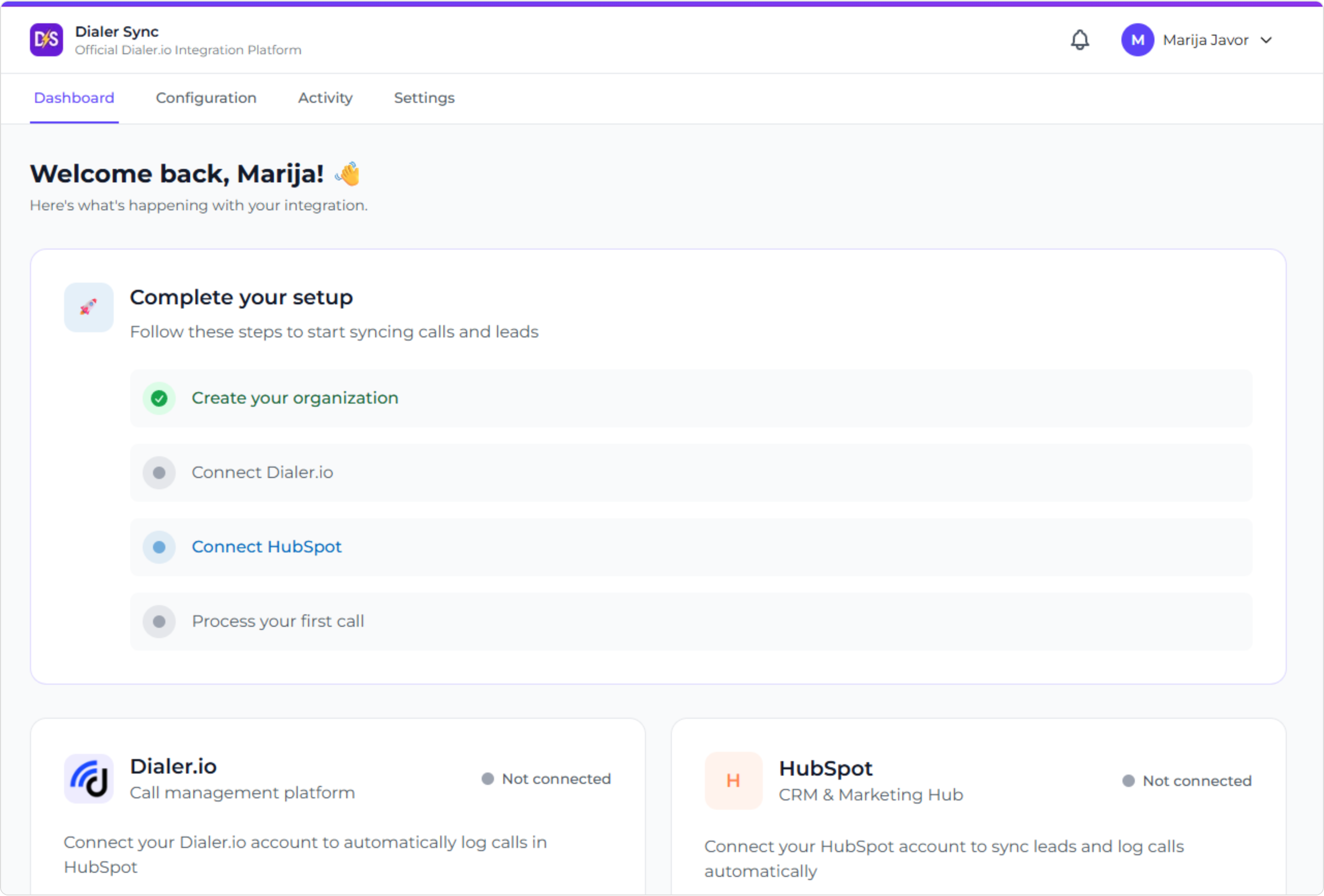
- Go to Dashboard -> Connect Dialer.io
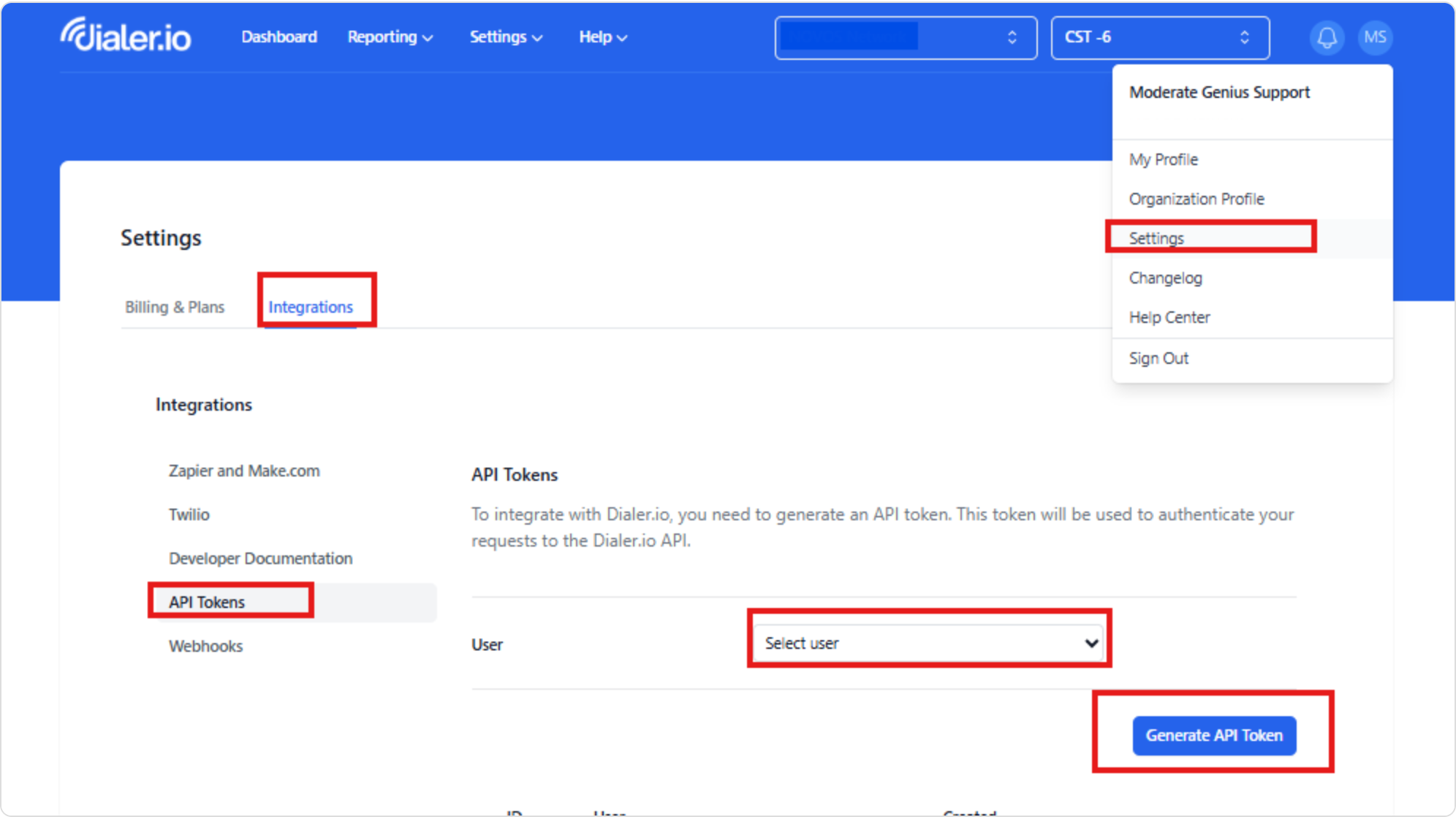
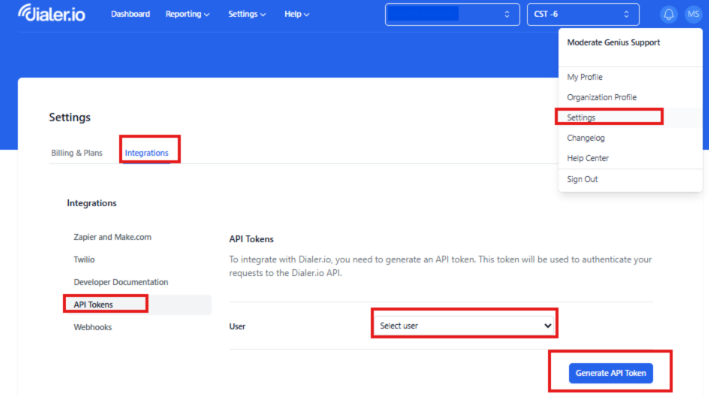
- Generate an API token in Dialer.io under Settings -> Integrations -> API Tokens
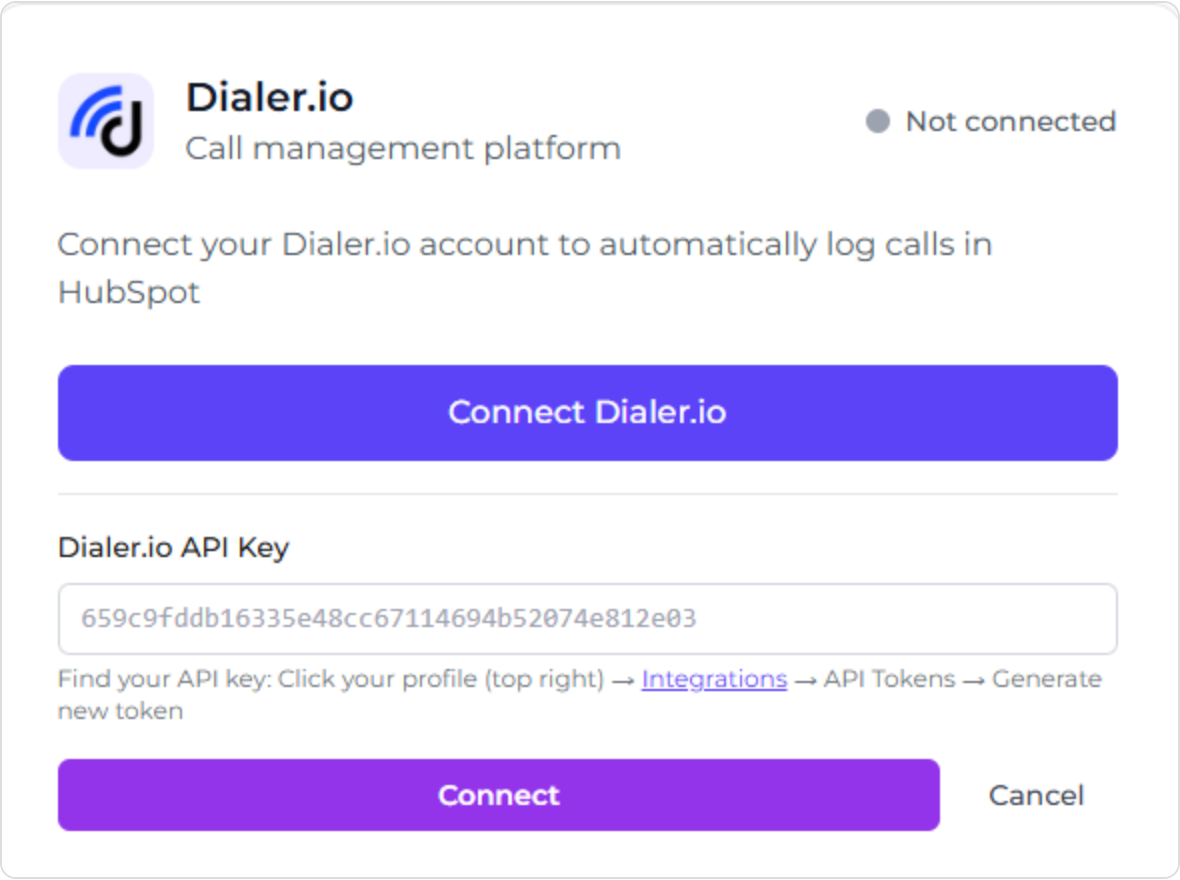
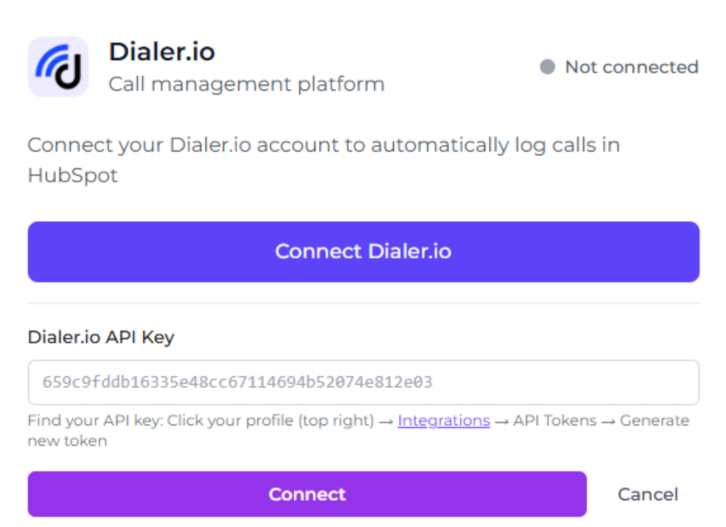
- Paste the API token into Dialer Sync and click Connect
What happens automatically:
- A webhook is created in Dialer.io
- Call events are subscribed
- No manual webhook setup is required
If Dialer.io does not connect, regenerate the API token and try again.
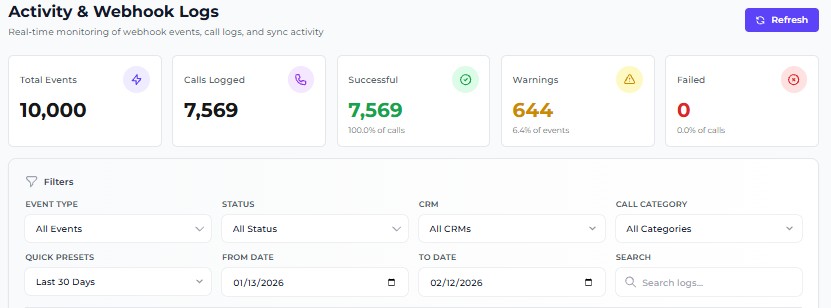
Activity log
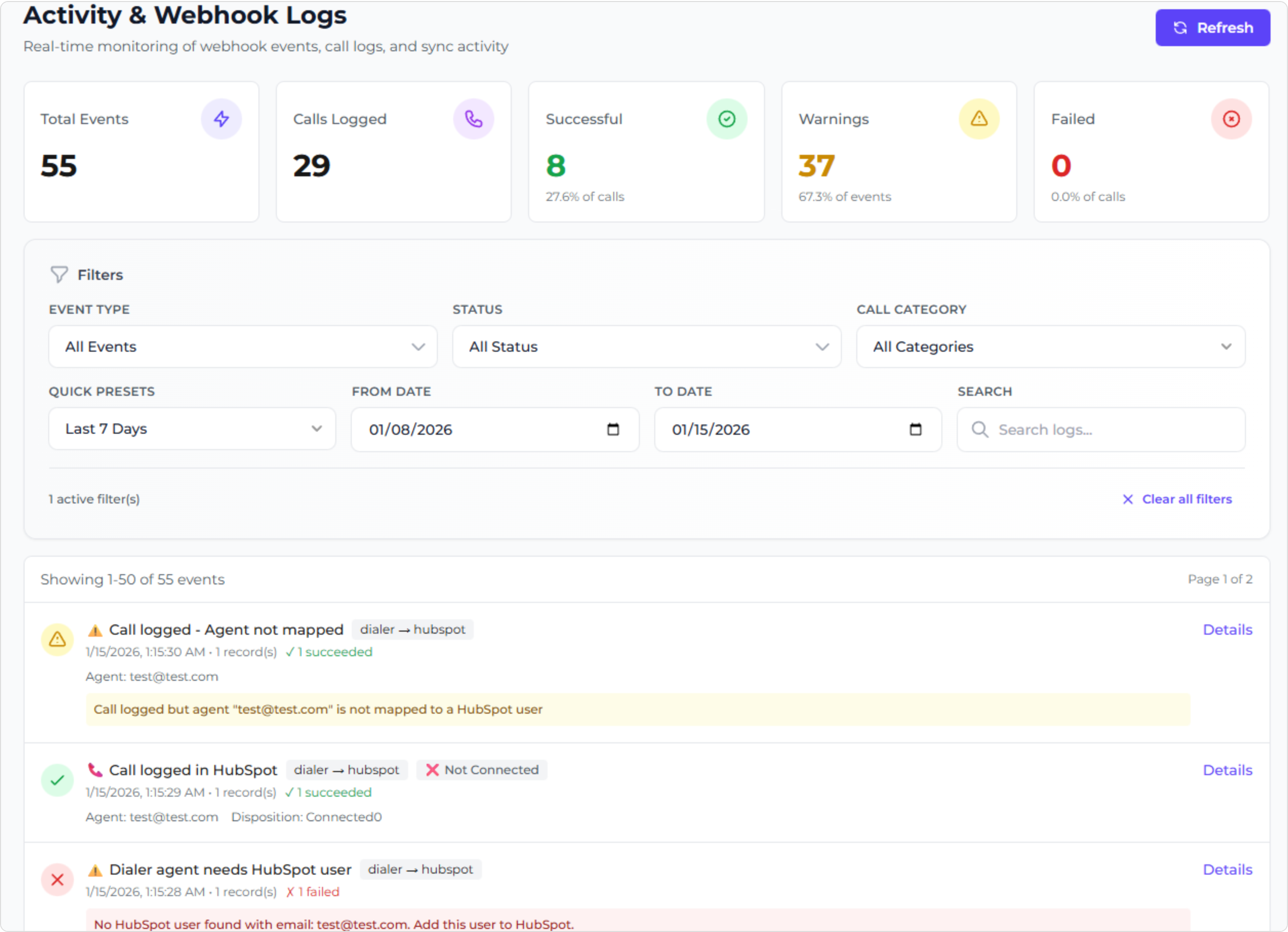
The Activity Log displays the events that occur during each call's processing. Use it to confirm successful calls or understand why something failed. It is the first place to check when troubleshooting.
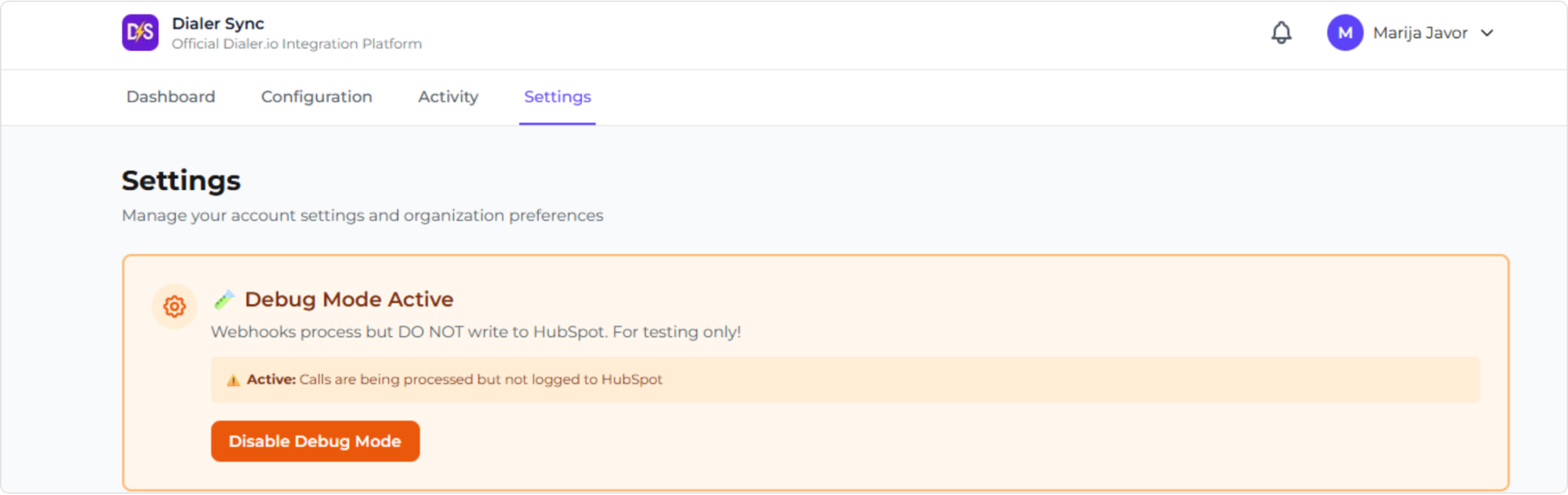
Debug mode
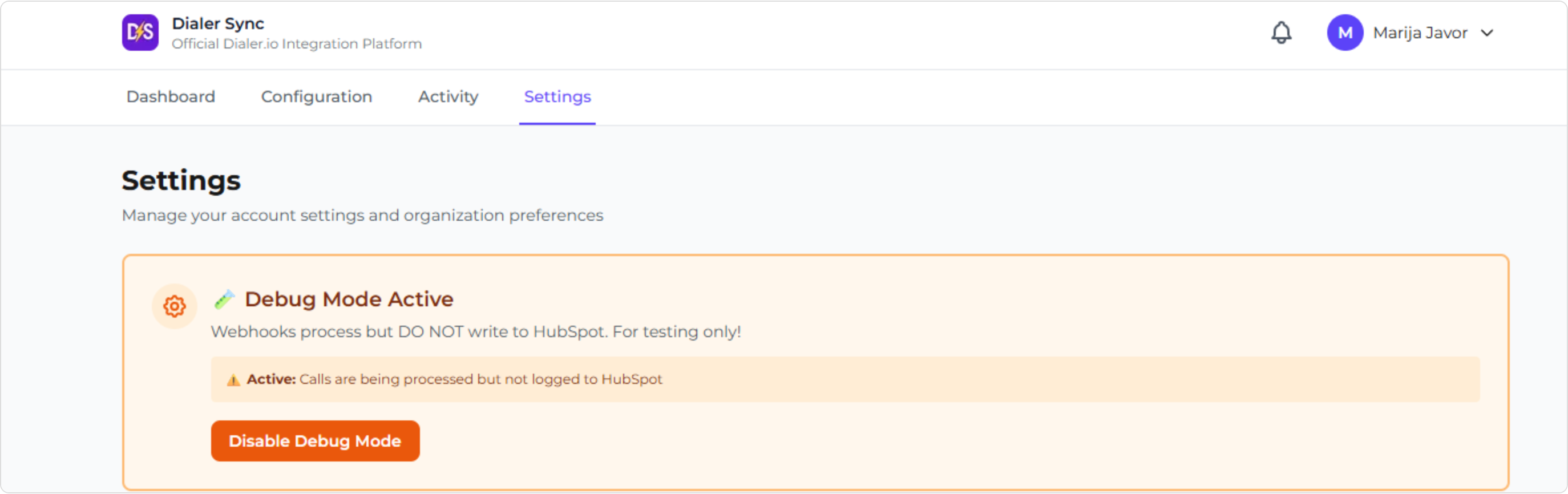
Debug Mode allows Dialer Sync to process calls without writing data to your CRM. This is useful when testing a setup or validating behavior. Calls are still processed, but nothing is logged in the CRM until Debug Mode is turned off.
Data and privacy
Dialer Sync processes only call-related metadata and workflow-initiated actions. Data is scoped to your organization and is not shared with third parties.
GDPR data deletion
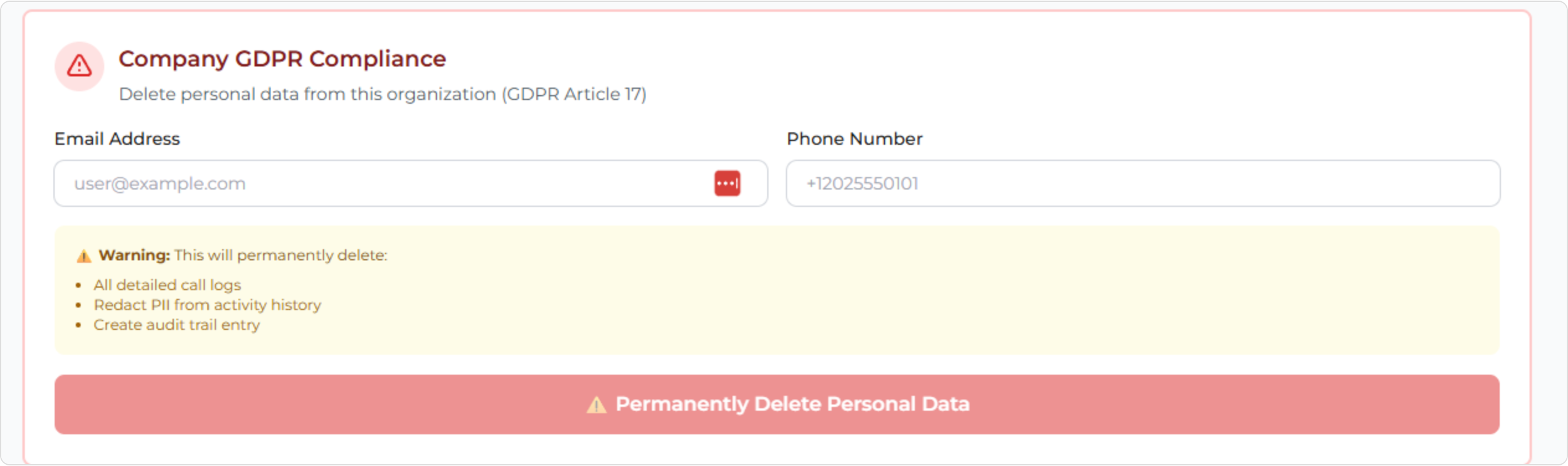
Dialer Sync includes an option to permanently delete personal data in accordance with GDPR Article 17 (Right to Erasure). Deletion is performed at the organization level and does not affect other customers.
What this does:
- Permanently deletes detailed call logs related to the specified contact
- Redacts personal identifiers (such as email or phone number) from activity history
- Creates an internal audit trail confirming the deletion request
What to know:
- This action is irreversible
- Only authorized users should perform deletions
- Dialer Sync will process deletion requests in accordance with GDPR requirements
HubSpot
Connect HubSpot (OAuth)
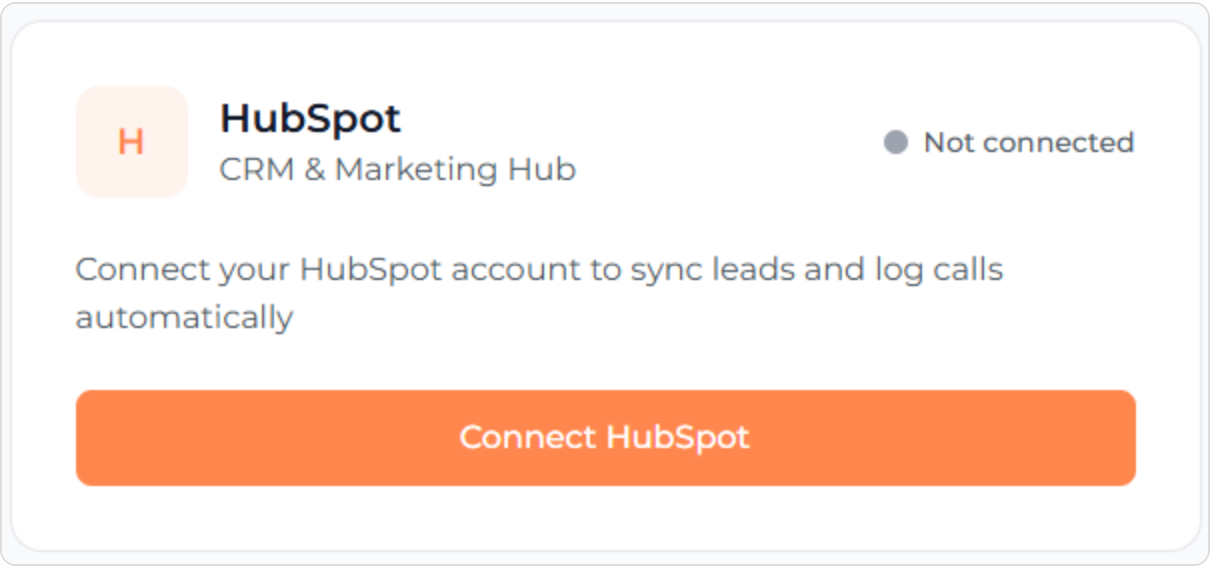
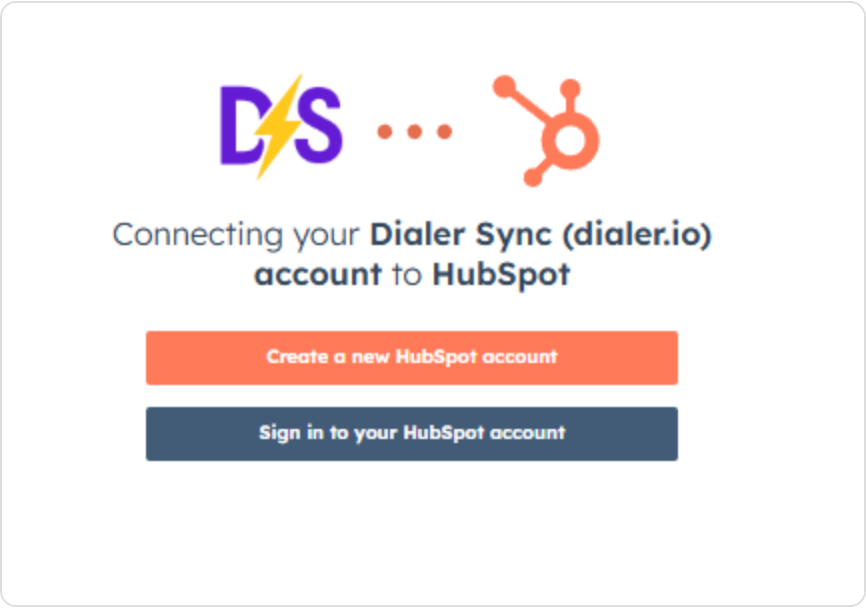
HubSpot is connected securely via OAuth from within Dialer Sync. You do not install Dialer Sync inside HubSpot.
- Go to Dashboard -> Connect HubSpot
- Click Connect
- Select your HubSpot account
- Approve access
Once connected, Dialer Sync can log calls and enable HubSpot workflow actions.
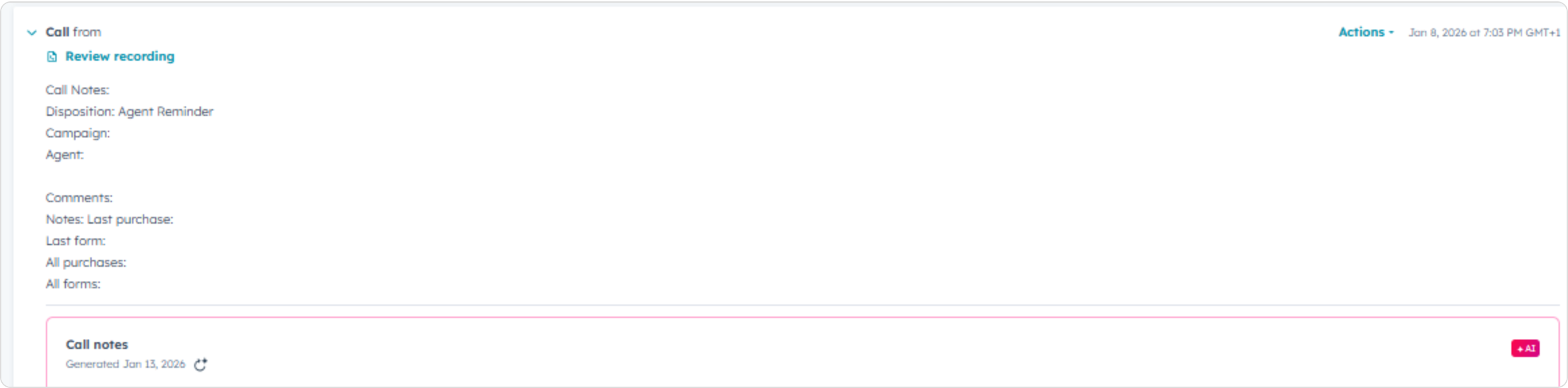
Confirm your first call
After both Dialer.io and HubSpot are connected:
- Place a call in Dialer.io
- Open the related contact in HubSpot
- Confirm the call appears in the activity timeline
If the call does not appear, check the Activity Log in Dialer Sync.
Agent mapping
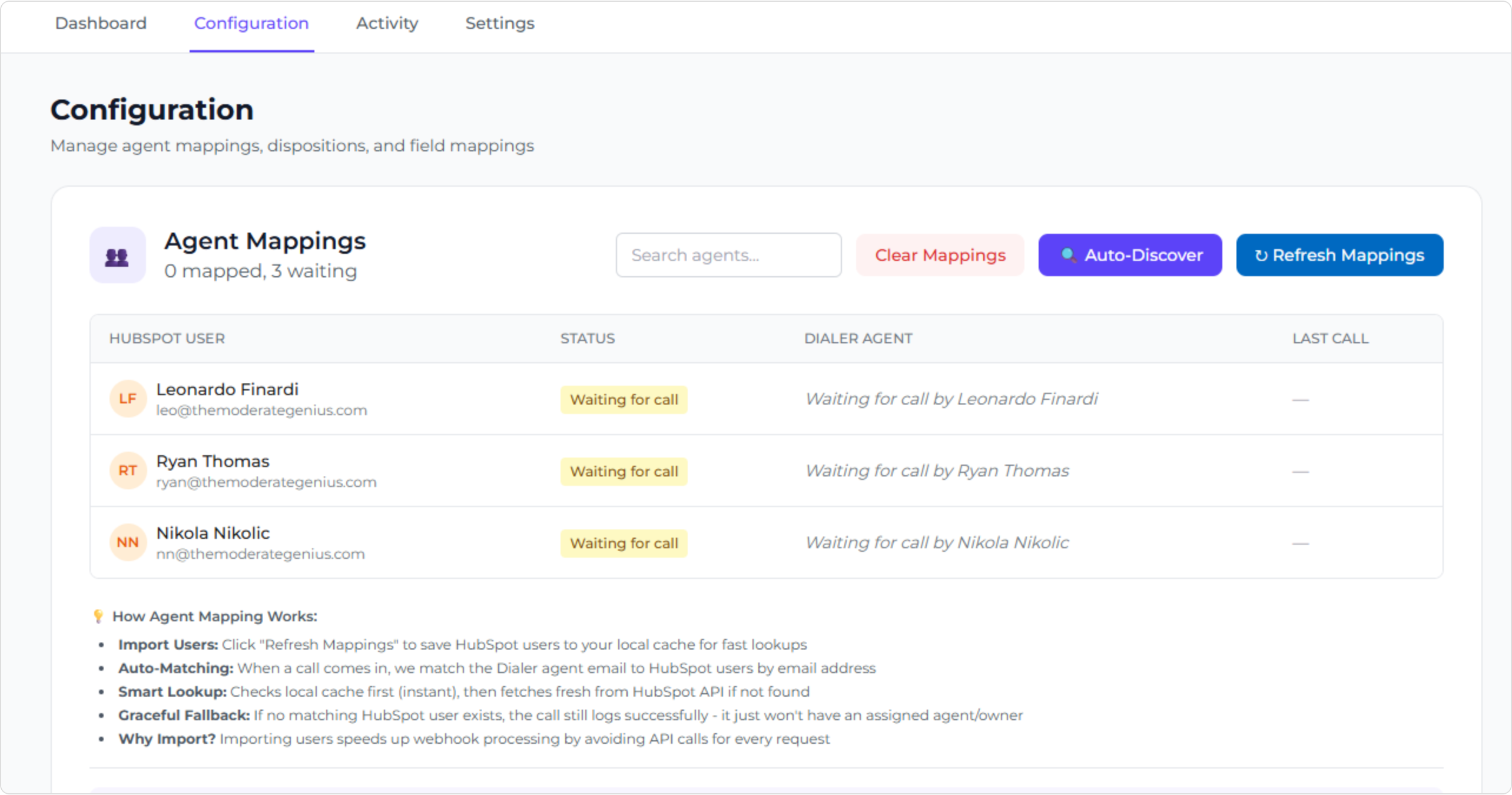
Agent mapping connects your Dialer.io agents to HubSpot users so calls appear under the correct owner in HubSpot.
Because Dialer.io and HubSpot manage users separately, Dialer Sync needs to know which Dialer agent belongs to which HubSpot user.
How agent mapping works
When a call is made or received in Dialer.io, Dialer Sync checks which agent handled the call and looks for a matching HubSpot user. If the agent has already been mapped, the call is logged under the correct owner.
If the agent is new, Dialer Sync will try to match the agent automatically. Once the agent exists in HubSpot, future calls will be assigned correctly.
When you need to take action
- A new agent has been added to Dialer.io
- A call appears in HubSpot without an owner
- An agent does not exist yet in HubSpot
To fix this, create the user in HubSpot and refresh mappings in Dialer Sync.
Important things to know
- Calls will still be logged even if an agent is not mapped
- Agent mapping only affects call ownership, not call logging
- Dialer Sync does not create HubSpot users automatically
- Agent mapping does not change user permissions
Call outcome (disposition) mapping
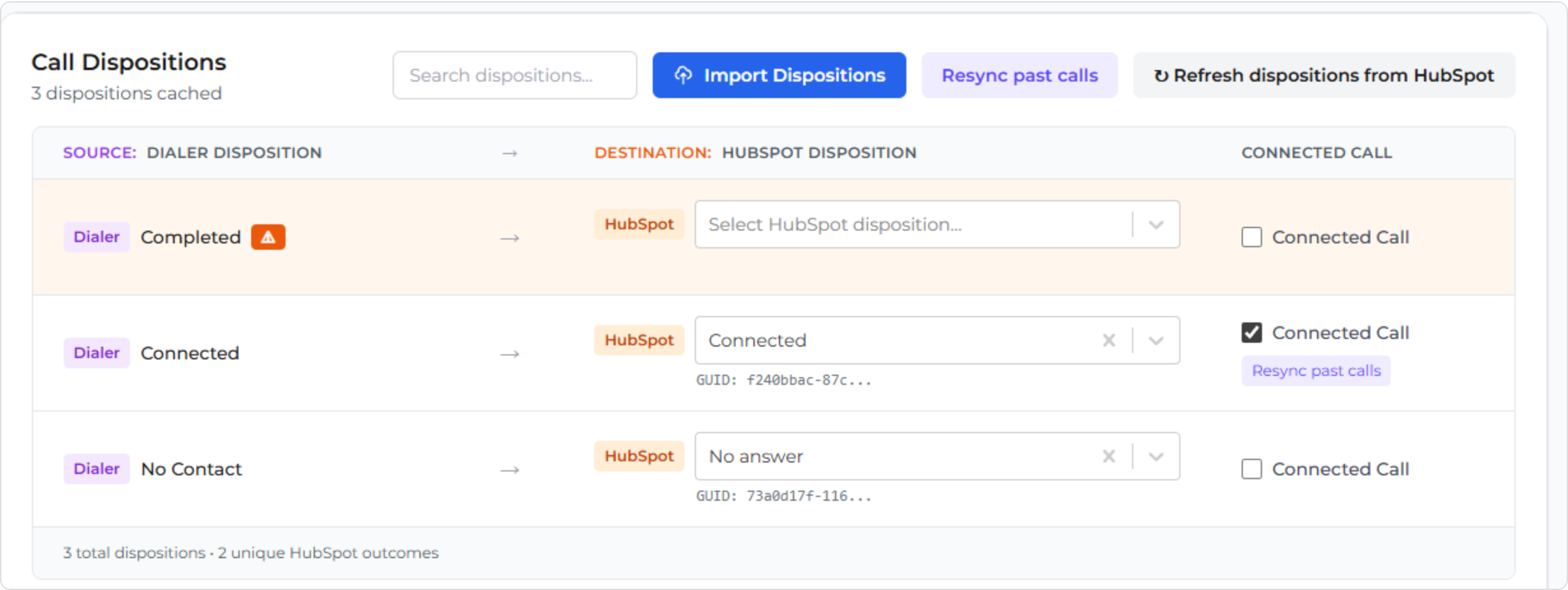
Call outcome mapping ensures the result of a call in Dialer.io matches the result shown in HubSpot.
If a Dialer.io outcome matches a HubSpot outcome by name, it is mapped automatically. If it does not exist in HubSpot, the call is still logged, but the outcome must be created in HubSpot to appear correctly.
After creating a missing outcome in HubSpot, refresh mappings in Dialer Sync.
Sending and removing contacts
Sending contacts to Dialer.io
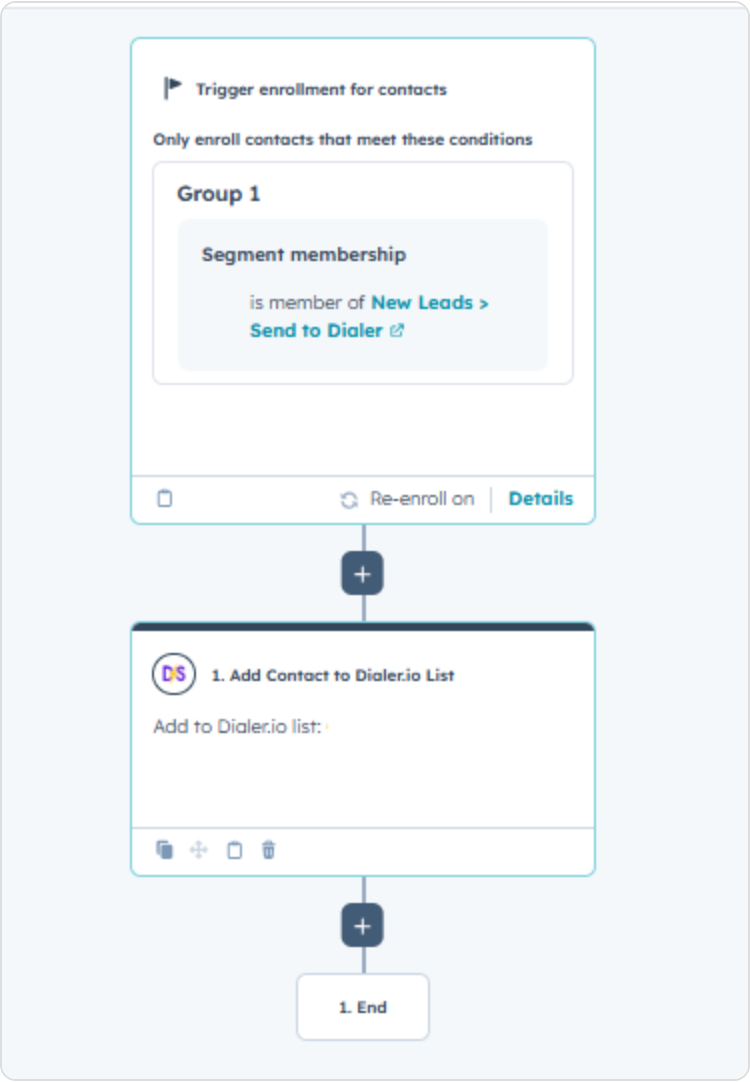
Using HubSpot workflows, you can send contacts into Dialer.io lists based on CRM logic such as lifecycle stage, form submission, or list membership. Contacts are sent only when you explicitly configure and run a workflow.
Removing contacts from Dialer.io
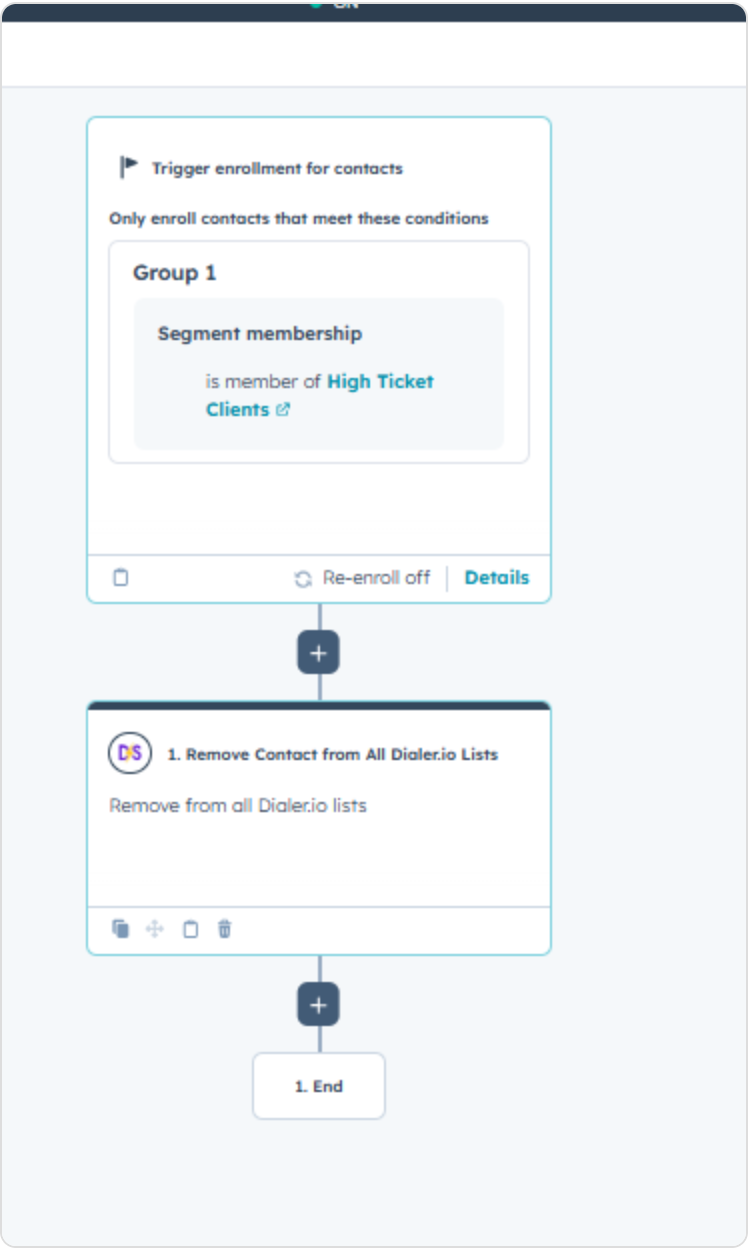
HubSpot workflows can remove contacts from specific Dialer.io lists or from all Dialer.io lists. This is commonly used when a lead is disqualified, a meeting is booked, or a deal is closed.
HighLevel / LeadConnector
Overview
Dialer Sync connects Dialer.io with HighLevel / LeadConnector to automatically log call activity, attribute calls to users, and enable workflow automation based on call outcomes.
Installation takes approximately 3–5 minutes.
Install from the marketplace
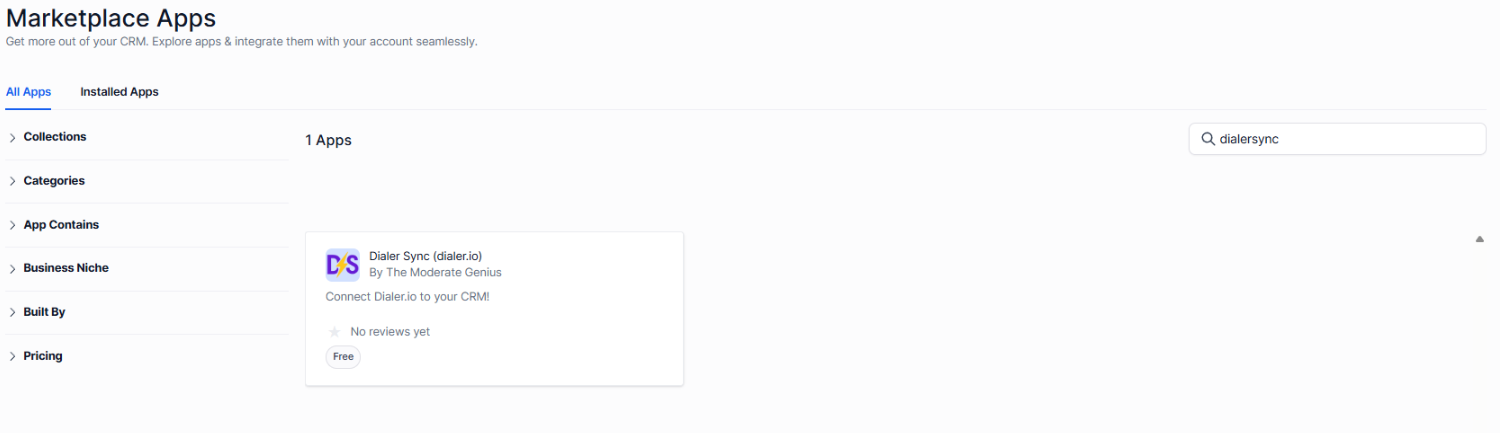
- Open the App Marketplace
- Search for DialerSync
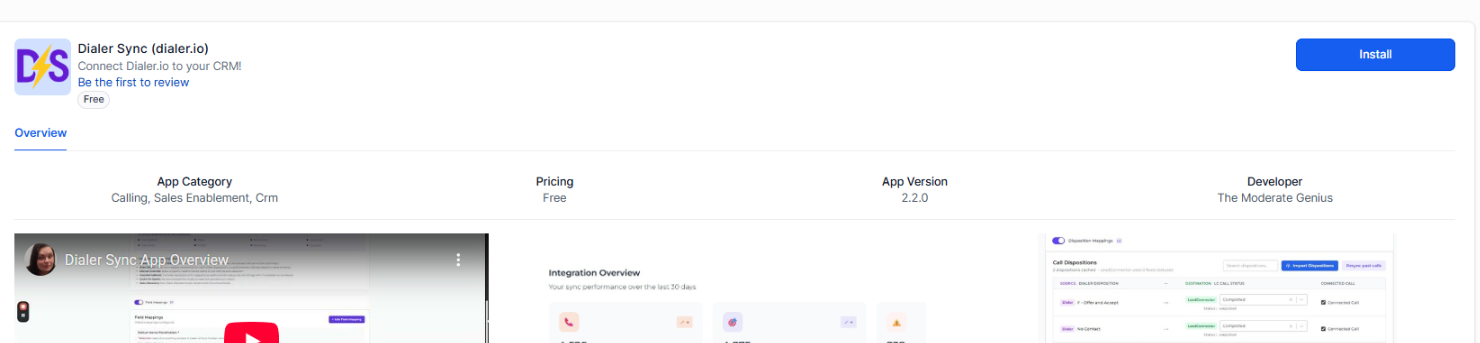
- Click Install
- Select the account where you want to install the app
- Review requested permissions
- Click Authorize
Complete authentication
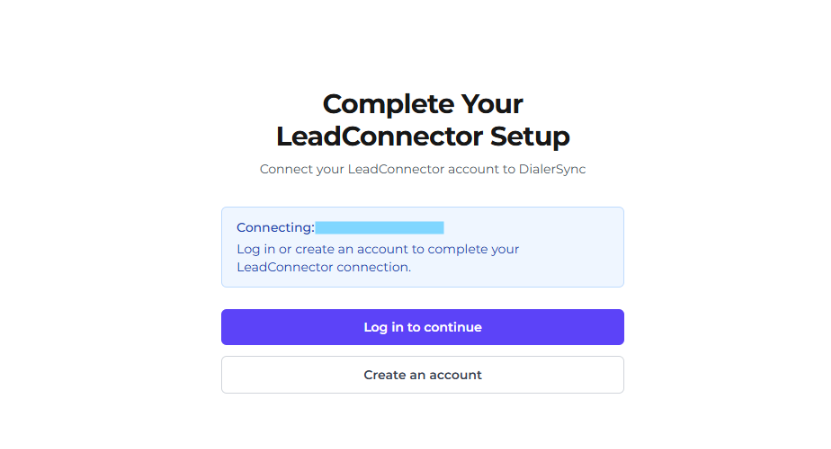
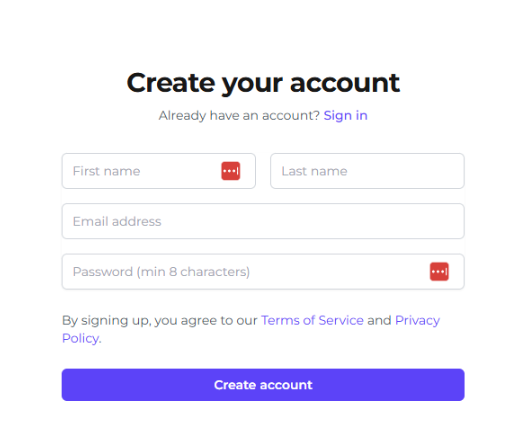
On the Complete Your Setup screen:
- Click Log in to continue if you already have an account, or
- Click Create an account if you do not yet have one
After authentication, you will be redirected back to Dialer Sync. This establishes the secure API connection.
Connect your Dialer.io account
- Log in to Dialer.io
- Generate a new API token
- Copy the API token
- Paste the token into the Dialer Sync connection field
- Click Connect
Once validated, setup continues automatically.
Automatic object and field creation
During onboarding, Dialer Sync will:
- Create a custom object called Calls
- Create an association between Calls and Contacts
- Sync users for agent attribution
No manual configuration is required.
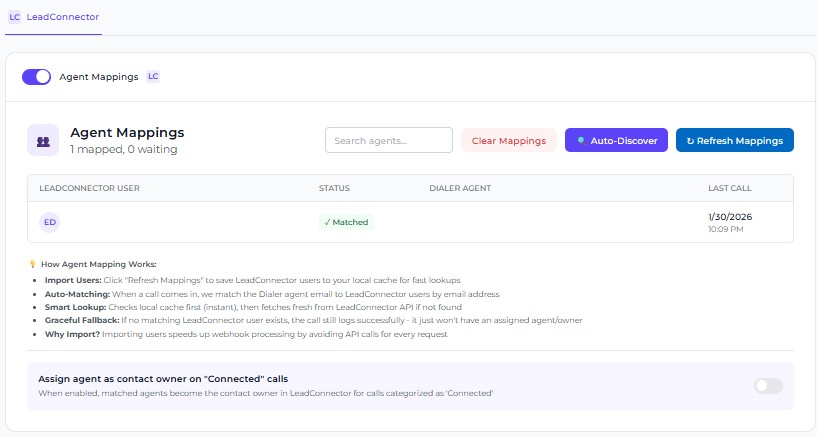
Verify agent mapping
Navigate to the Agent Mapping section. Confirm each Dialer.io agent is mapped to the correct HighLevel user. Save changes if adjustments are required.
Agent mapping connects your Dialer.io agents to HighLevel users so calls appear under the correct owner. Dialer Sync does not create HighLevel users automatically.
When you need to take action
- A new agent has been added to Dialer.io
- A call appears in HighLevel without an owner
- An agent does not exist yet in HighLevel
Place a test call
- Make a test call using Dialer.io
- Open the associated contact record in HighLevel
- Confirm a Calls record was created and linked to the contact
- Confirm the correct user is attributed
- Confirm the call outcome is recorded
Call records should appear in near real time.
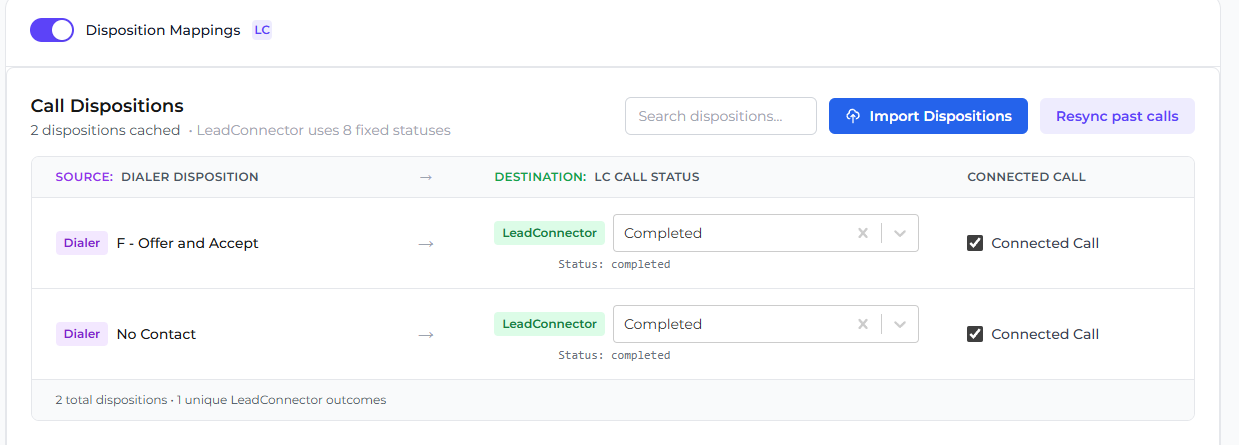
Call outcome (disposition) mapping
If a Dialer.io outcome matches a HighLevel outcome by name, it is mapped automatically. If it does not exist in HighLevel, the call is still logged, but the outcome must be created in HighLevel to appear correctly.
After creating a missing outcome in HighLevel, refresh mappings in Dialer Sync.
Configure workflow automation
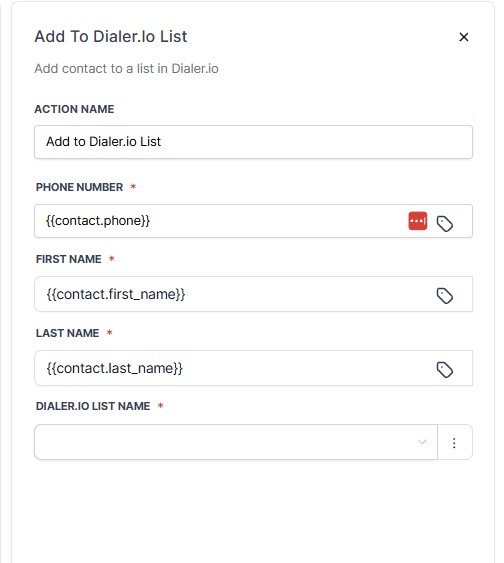
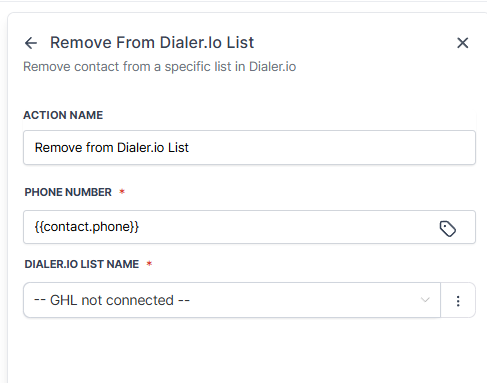
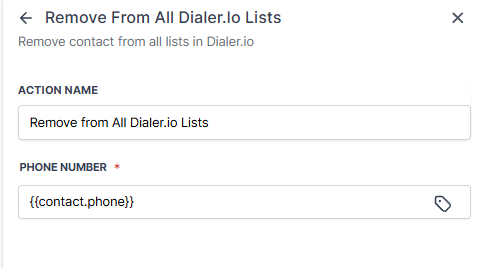
You can build HighLevel automations that:
- Add contacts to Dialer.io lists
- Remove contacts from a single Dialer.io list or all lists
Monitor activity and uninstall
Monitor activity logs
- Open the Activity Log inside Dialer Sync
- Review webhook events and sync attempts
- Check error messages if a sync fails
Debug mode
Debug Mode processes calls without writing data to HighLevel. Useful for testing before going live.
Uninstall
If the app is uninstalled from HighLevel:
- API access is revoked
- Synchronization stops immediately
- No further data will be written
- Previously logged call records remain unless manually deleted
Close CRM
Overview
The Close integration allows Dialer Sync to sync lead activity, dialer actions, cadence enrollment, and call activity between Close and Dialer.io.
The integration supports:
- Adding leads to Dialer.io lists
- Removing leads from Dialer.io lists
- Adding leads to cadences
- Syncing call activity, dispositions, and recordings
- Workflow-based automation from Close
For Close specifically, you will also need:
- Admin access in Close CRM
- Existing Dialer.io lists and cadences ready for use
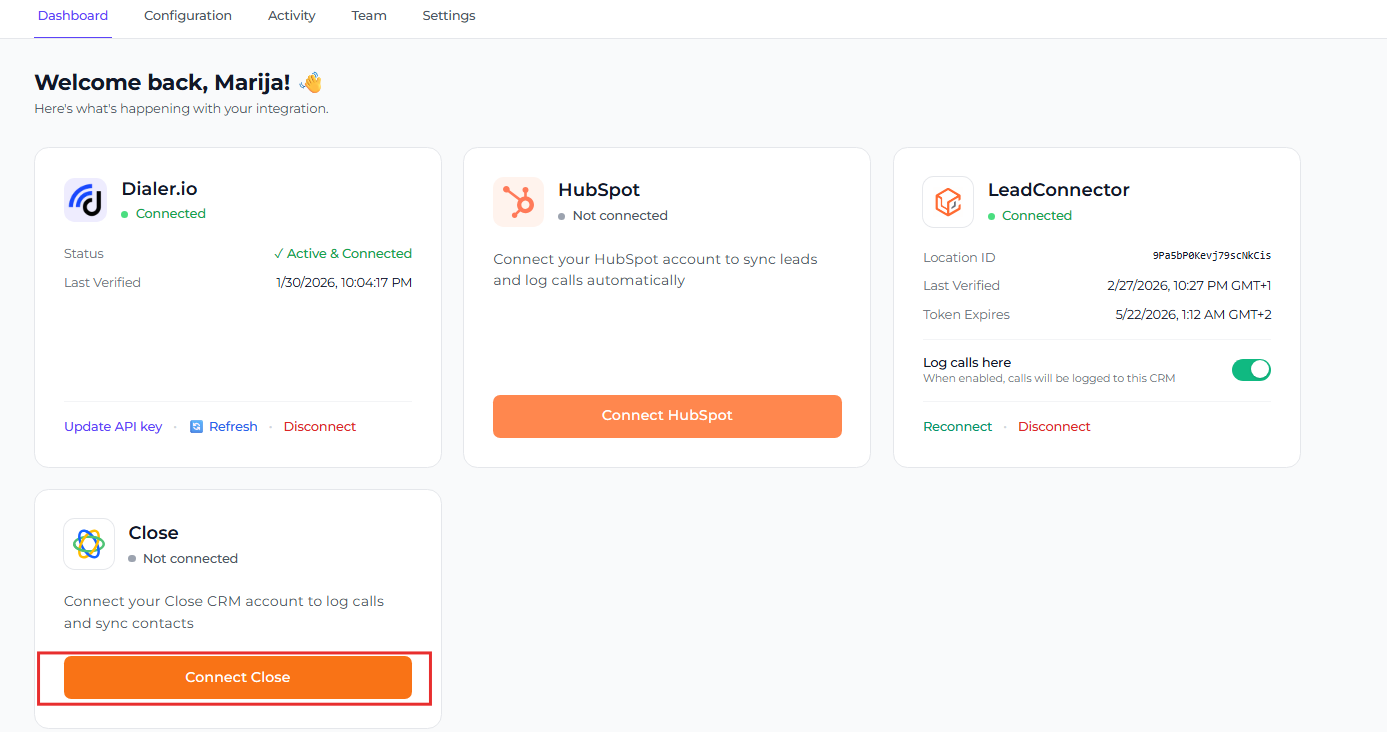
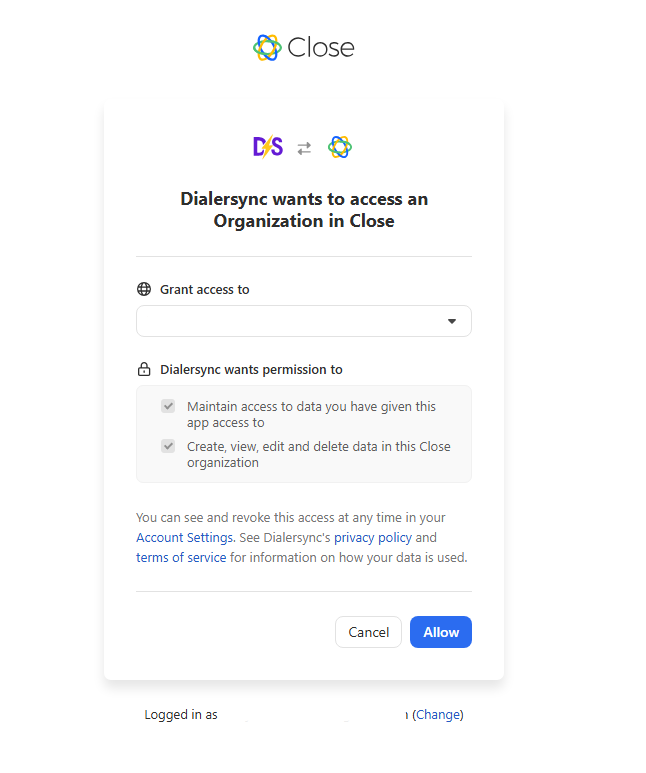
Connect Close CRM
- Navigate to the Close CRM integration page in Dialer Sync
- Click Connect
- Log into your Close account
- Approve the OAuth connection
- Return to Dialer Sync
Once complete, the Close CRM integration will show as connected.
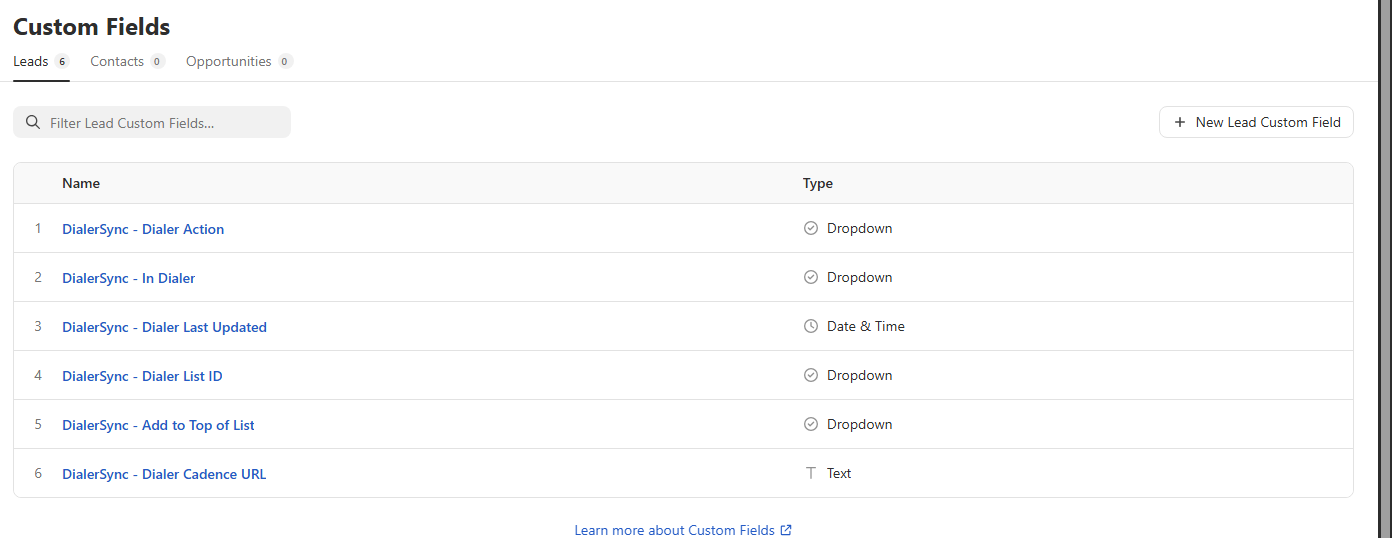
Custom fields created in Close
After connecting, Dialer Sync automatically creates custom lead fields inside Close CRM.
- DialerAction
- AddToCadence
- AddToDialerNone
- RemoveFromDialerSingleList
- DialerLastUpdatedDate
- DialerListIDText
- CadenceURLText
How the integration works
Dialer Sync registers a webhook inside Close that listens for changes to the DialerAction field. When the field changes, Dialer Sync performs the requested action in Dialer.io.
- Add lead to Dialer.io
- Remove lead from Dialer.io
- Add lead to cadence
- Remove lead from all lists
Configure field mappings
Before workflows can trigger dialer actions, field mappings must be configured in Dialer Sync Configuration.
Map Close CRM fields to Dialer.io fields. Examples include:
| Close field | Dialer.io field |
|---|---|
| First Name | First Name |
| Lead Source | Source |
| Lead ID | CRM Reference |
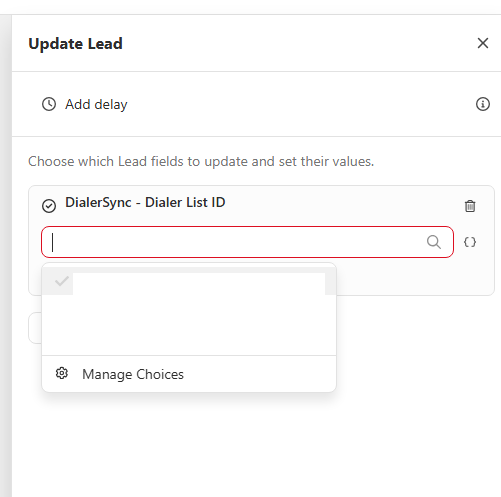
| DialerListID | Dialer List |
Once complete, click Save Mappings and repeat for additional actions if needed.
Creating Close workflows
Dialer actions are triggered through Close workflows by updating custom fields.
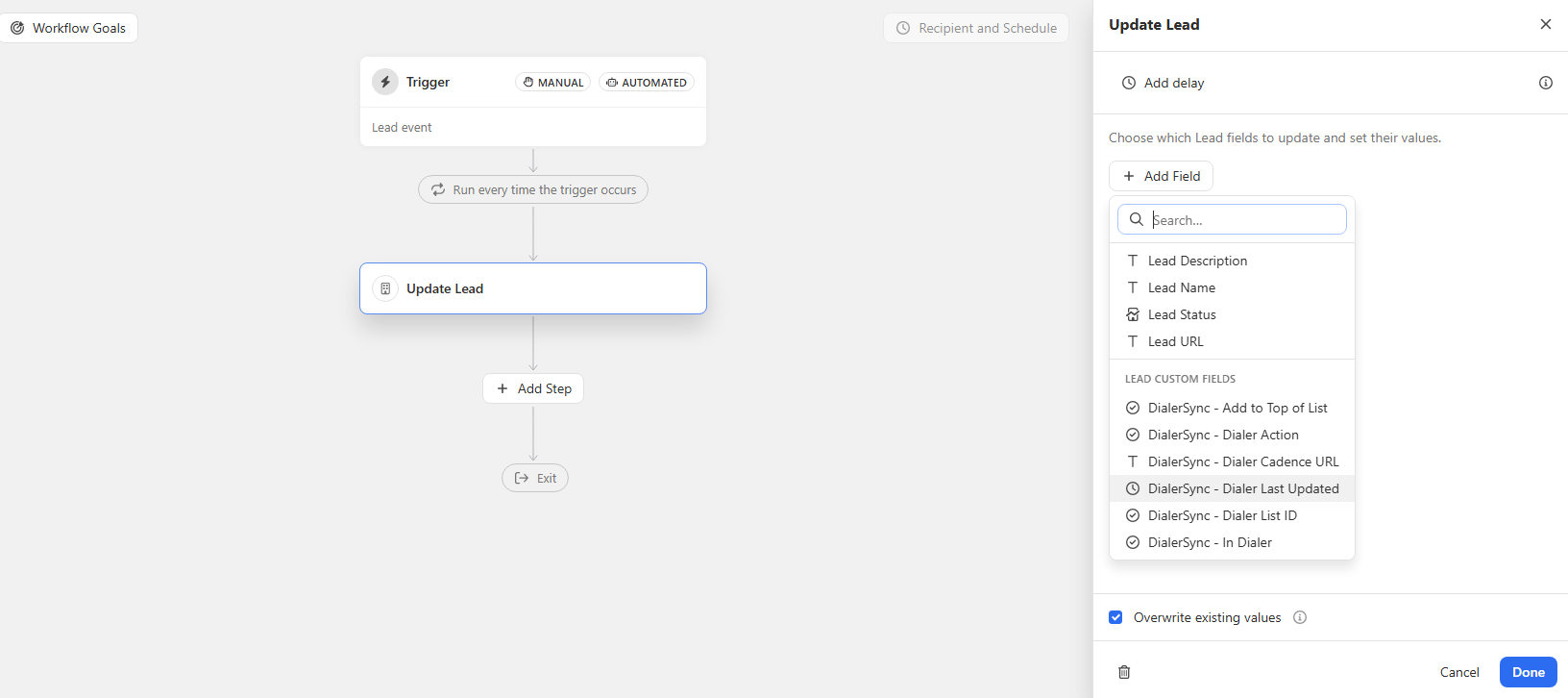
Add lead to Dialer.io
- Update DialerListIDText to the target dialer list ID
- Update DialerAction to AddToDialer
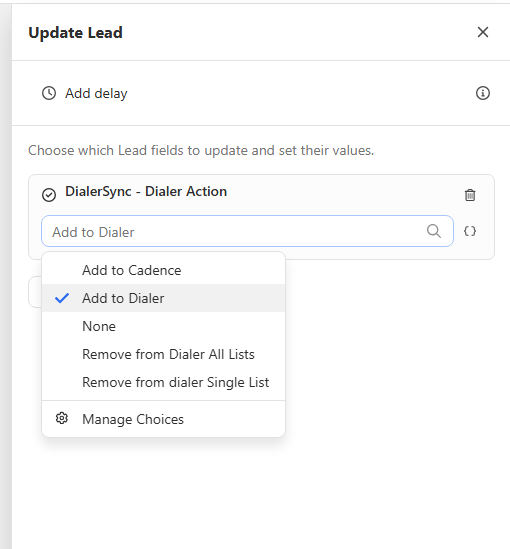
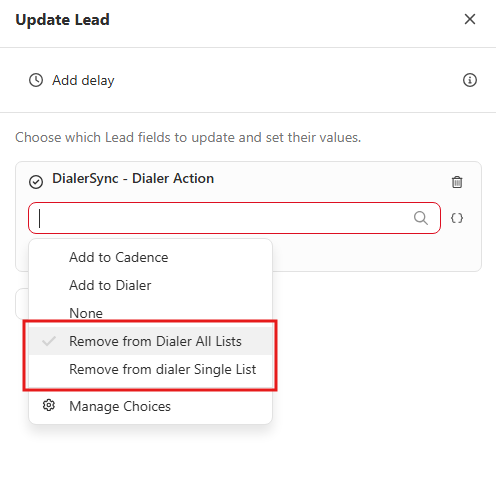
Remove lead from a single list
- Update DialerAction to RemoveFromSingleList
Add lead to cadence
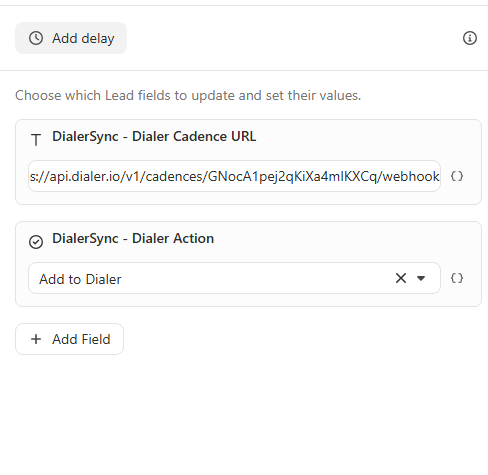
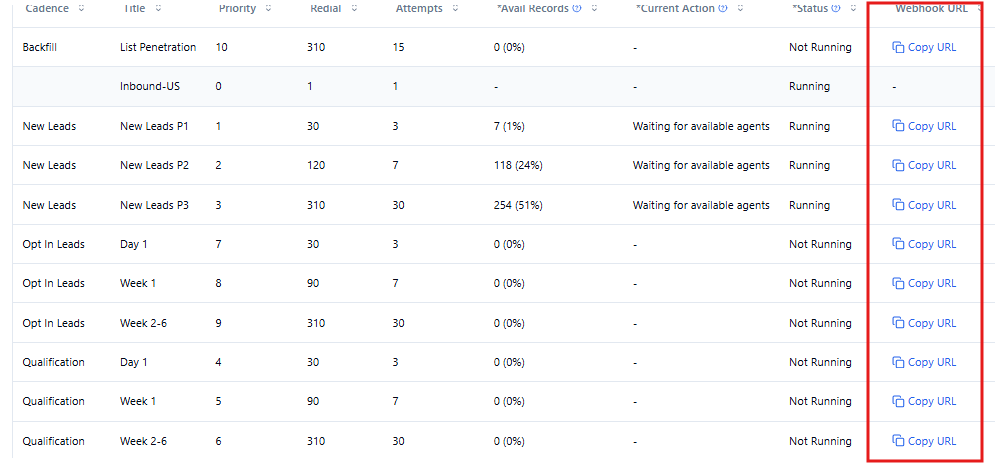
- Update CadenceURLText to the cadence webhook URL
- Update DialerAction to AddToCadence
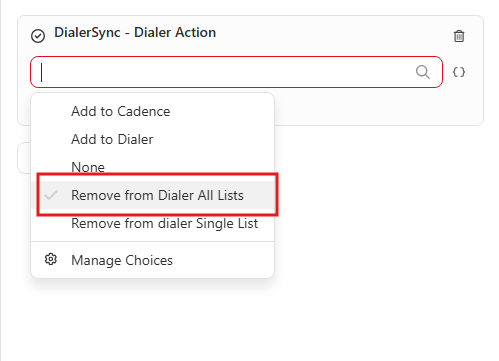
Remove lead from all lists
- Update DialerAction to RemoveFromAllLists
Call activity and recordings
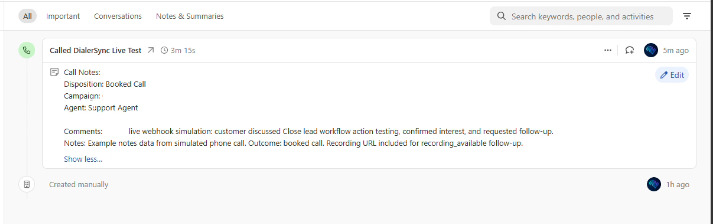
Dialer Sync syncs call activity back into Close CRM, including calls, notes, dispositions, and call recordings.
When recordings become available:
- Dialer Sync receives the recording webhook
- The recording is attached to the Close activity
- Users can play recordings directly inside Close
After actions complete, Dialer Sync automatically updates fields such as InDialer, DialerAction, and DialerLastUpdatedDate. The DialerAction field resets to None after execution.
Best practices and troubleshooting
Best practices
- Always update supporting fields before DialerAction
- Keep dialer list IDs organized
- Use separate workflows for separate dialer actions
- Test every workflow before production rollout
- Avoid conflicting automation acting on the same lead simultaneously
Lead not added to Dialer.io
- Validate phone number format
- Confirm list ID exists
- Review field mappings
- Make sure DialerAction is updated last
Lead not added to cadence
- Confirm CadenceURLText is populated first
- Validate cadence webhook URL
- Confirm workflow updates DialerAction after setting cadence fields
Call recording missing
- Wait for recording webhook processing
- Recheck the Close activity after several moments
- Confirm Dialer.io finished generating the recording